How to — cut an AI app off from your accounts
You connected an AI tool to your mail or calendar once, used it for a week, and stopped thinking about it. By the end of this, every connected-apps list you own will show only apps you can name a reason for — and you'll know exactly how to pull the plug.
What you granted wasn't a one-time peek. When you tapped "Allow" on a consent screen, you issued the app a standing key: a bundle of permissions, which the standards call a scope, that keeps working while you're not looking. That's the point of the design — an email assistant that could only read your inbox while you watched it would be useless — and it's also why access accumulates. Every product that ever talked you into connecting still holds whatever you handed it.
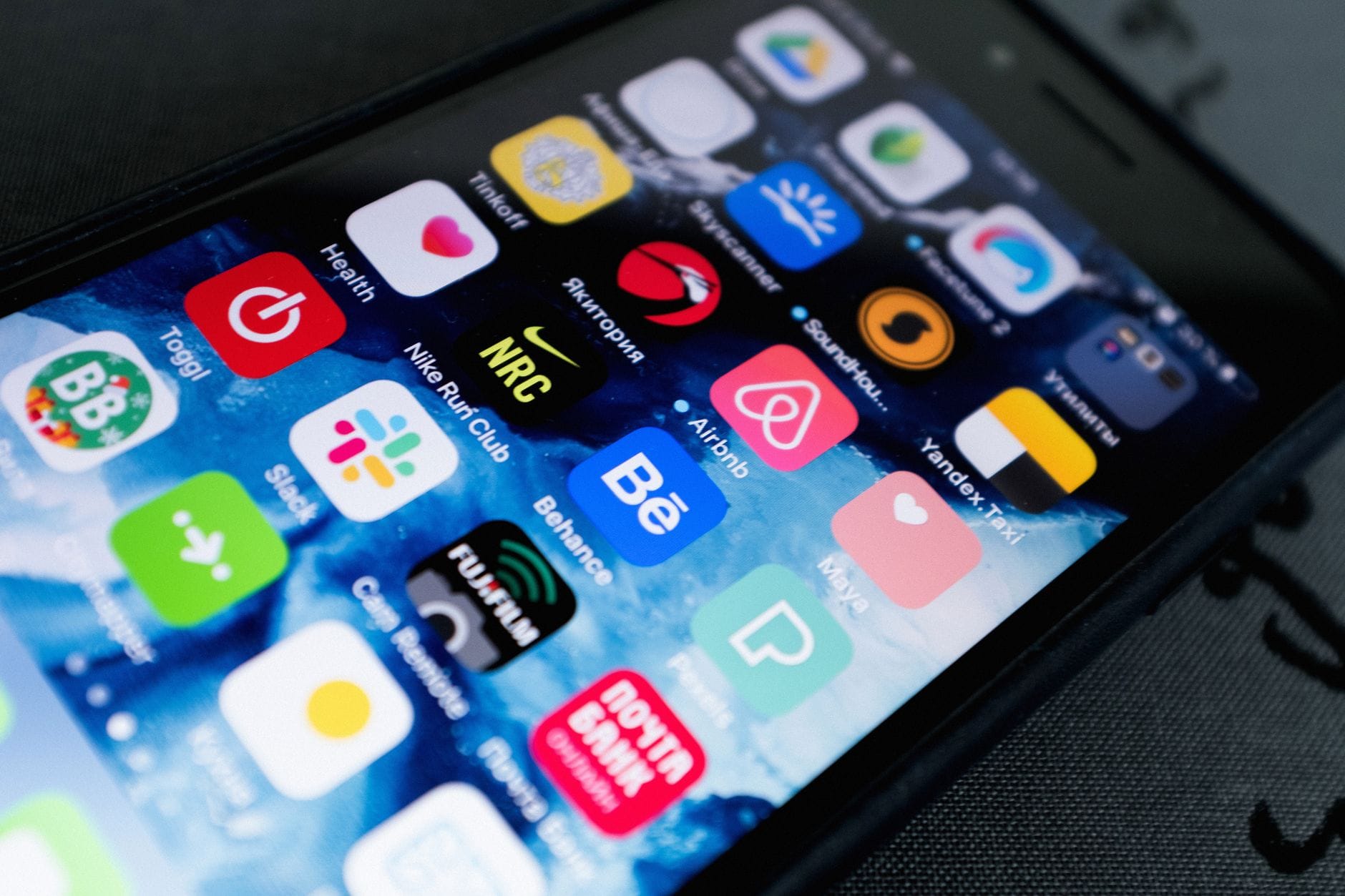
It matters more now than it did two years ago, because the tools holding these keys increasingly act on their own: drafting, sending, booking, filing. A forgotten grant is a door nobody is guarding.
1. Start on the side that granted the access
Deleting the AI app from your phone or closing its tab does nothing to the keys it already holds. The grant lives on the account you approved it from: Google's list of apps with access to your data, your Apple Account's Sign in with Apple apps, your email provider's delegated access, each social platform's connected-apps page. Walk every service where you've ever tapped "Connect" — people check the big account and forget the mail provider, the job board, the old portfolio site. This is also the case for why you care at all: What is prompt injection? explains how instructions get smuggled into tools an app can still reach — and access nobody checks is access nobody is watching.
2. Sort by blast radius, not by install date
Read what each grant actually permits, in plain terms: can it read or write? Can it send messages as you, or only read them? Does it work anytime, or only while you're watching it? The powers that matter are send, write, and manage — over mail, calendars, files, and payments. A chatbot that can read your notes is a smaller problem than a "personal assistant" that can send email from your address, no matter which one looks fancier. For the other half of the risk — what can go wrong while a connected app is quietly doing its job — How to — spot prompt injection in a product you use covers the warning signs.
3. Revoke anything you can't explain in five seconds
If you can't name the job an app still does for you, it doesn't keep the keys: the abandoned trial, the duplicate assistant, the expired job-search tool. Grants routinely outlive the products behind them. Companies fold without ever revoking their tokens, rebrands leave old permissions under old names, and the free tier you stopped opening in March still has exactly what you gave it in March. You are the only party to this relationship who remembers it exists.
4. Re-grant the keepers narrowly
Consent screens are worth reading when they reappear. Which account is being connected? Which powers, exactly? How long does the grant last? Give read access first and let the tool ask for write access when it has something real to write. When a product offers a masked or relayed email address and you don't expect mail from it, take the masked one — the app gets an identity, not a forwarding address into your inbox. This is the account-owner version of the question we asked builders in How to — decide what an AI agent may do: you don't have to be building agents to answer it for yourself.
5. Sweep the side doors
Revoking the headline grant doesn't clean up everything the app left behind. Mailbox delegates, app-specific passwords, forwarding or import rules, and old sessions inside the tool's own account all survive an OAuth revocation. And every connection has two sides: the account that issued the key and the app that holds it. Disconnect both — revoke at the source, then remove the listing inside the AI product itself, so it stops quietly asking for data you thought you cut off.
Don't do this
Don't revoke everything in one furious sitting. The calendar sync, the email helper, the meeting-notes bot you actually rely on — they all die at once, and you'll spend an afternoon debugging products that are merely locked out. Pull the grants one at a time, or set aside a re-authorization week and accept it as the cost of the sweep.
How you'll know it worked
The connected-apps lists now show only apps you can name a reason for. The practical test: pick one app you revoked and let it wake up. Instead of quietly doing its job, it should come back asking you to sign in again. If it keeps working, the grant didn't die where you pulled it — go find where it actually lives: a second provider, an app-specific password, or a session it never lost.
Which AI app still has access to your inbox that you haven't opened in a month? Tell us in the comments.
Sources: Google Account — apps with access to your data · Apple — Manage your apps with Sign in with Apple · OAuth 2.0 Authorization Framework (RFC 6749) · Google Security Checkup